


Amid the wave of digital transformation, more professionals are discovering the convenience of Google Workspace. But have you ever faced this common challenge: your company uses Outlook on desktop, while you rely on Google Calendar for personal scheduling on mobile—forcing you to constantly switch between two calendars and risking missed meetings?
Worry no more! As your trusted cloud partner, Microfusion shares a highly practical workplace tip. With just a simple export and import, you can seamlessly migrate your Outlook calendar events to Google Calendar—enabling unified schedule management across all devices.
Follow our step-by-step guide below to streamline your cloud workflow today!
Before You Begin: Understanding Manual Import vs. Real-Time Sync
Before proceeding, it’s important to clarify a key concept. The method described in this guide uses an .ics file to perform a one-time calendar import.
- What does this mean? It means you’re exporting your existing Outlook events as a snapshot and importing a copy into Google Calendar.
- What should you keep in mind? This process does not create real-time synchronization between Outlook and Google Calendar. Once the import is complete, any new meetings added in Outlook will not automatically appear in Google Calendar—you’ll need to repeat the manual export and import process if you wish to update your Google Calendar again.
This approach is ideal for the following scenarios:
- You’ve decided to fully transition from Outlook to the Google Workspace ecosystem.
2. You need to back up historical calendar data for reference or cross-device access.
Step-by-Step Guide: How to Import Your Outlook Calendar into Google Calendar
Ready to get started? Just follow these three simple stages, and you’ll have your calendar migrated in minutes!
Step 1: Export Your Outlook Calendar as an .ics File
First, we need to save your Outlook calendar data in the standard format (.ics).
1. Select Your Calendar: Open Outlook (desktop version), go to the Calendar view, and select the calendar you wish to export.
→ Right-click the desired calendar under “My Calendars”
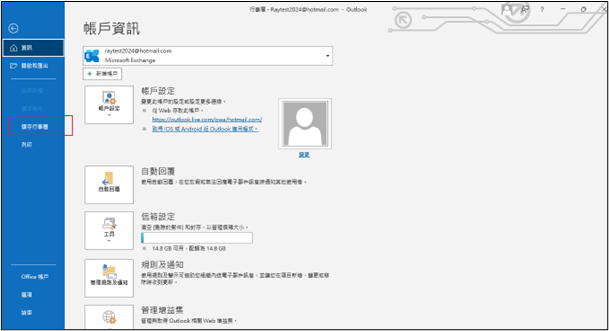
→ Choose “Save Calendar…” (or navigate via File > Save Calendar)
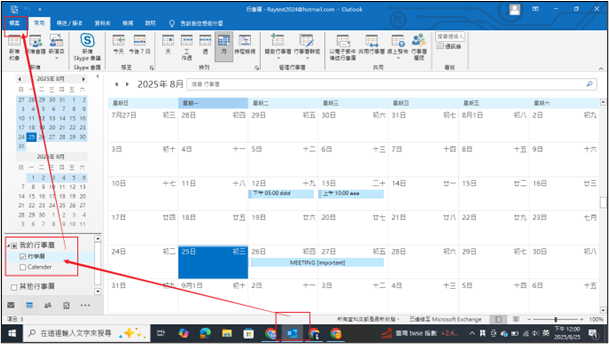
2. Save Calendar: Select the “Save Calendar” option.
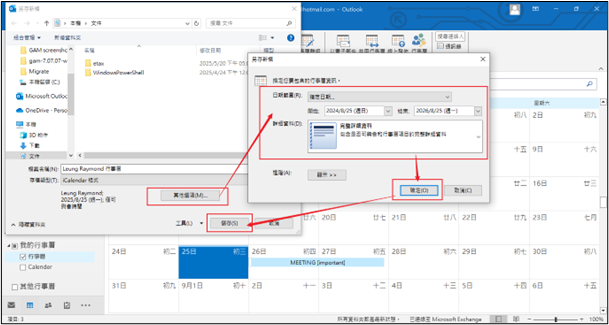
3. Adjust Settings: Before saving, you can specify a date range (e.g., only events from the next 12 months) to keep the file size manageable. Click “More Options” or “Filter” if available, set your desired period, then proceed.
4. Save the File: Once confirmed, save the .ics file to an easily accessible location on your computer—such as your desktop. This is the file you’ll upload to Google Calendar in the next step.
Step 2: Set Up Google Calendar for Import
Now, let’s move to the Google Workspace side.
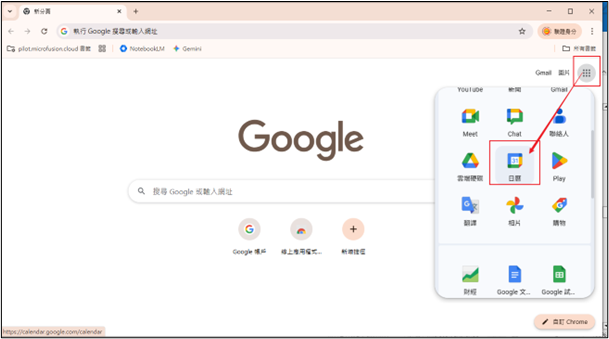
1. Open Google Calendar: Sign in to your Google account using a web browser and go to Google Calendar.
2. Open Settings Menu: Click the gear icon (⚙️) in the top-right corner, then select “Settings.”
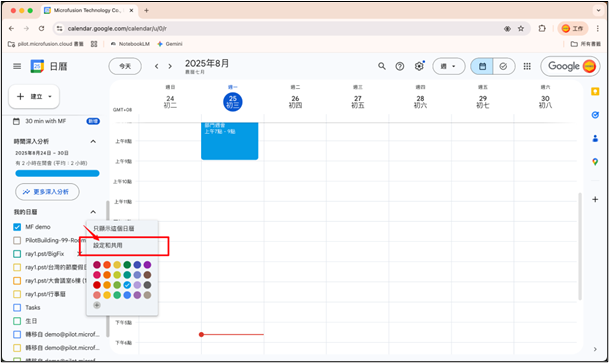
Step 3: Import and Confirm
The final step—upload the .ics file you just exported!
1. Locate the Import Function: In the Settings page, click “Import & export” in the left-hand menu.
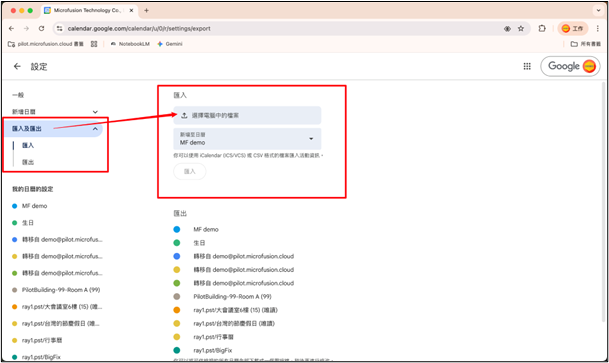
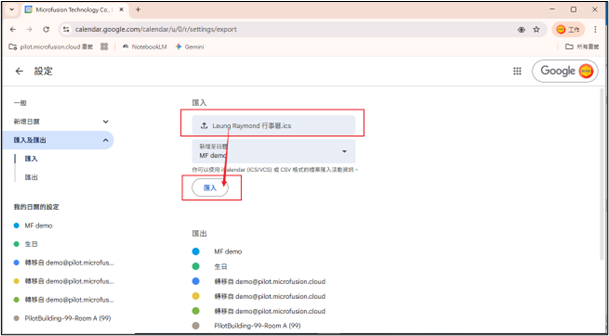
2. Select Your File: Under the “Import” section, click “Select file from your computer” and choose the .ics file you saved earlier.
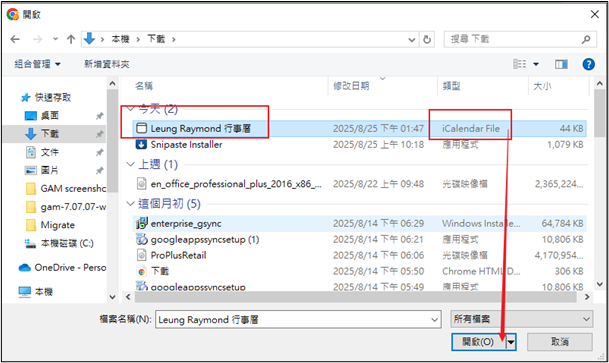
3. Choose Target Calendar: In the “Add to calendar” dropdown, select the Google Calendar where you want to import the events (typically your primary calendar).
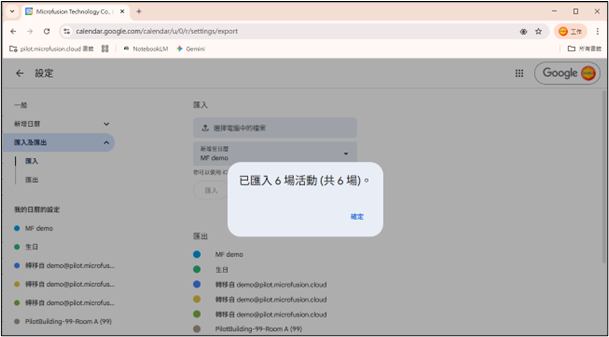
4. Click Import: Press the “Import” button.
5. Done!: The system will process your file (processing time depends on the number of events). Once complete, you’ll see a confirmation message: “Successfully imported X events.” Return to your Google Calendar main view—you’ll now see all your Outlook events neatly displayed in Google Calendar!
By following the steps above, you’ve successfully resolved your personal calendar migration. However, for enterprises, data migration is far more complex and mission-critical.
Why Do Enterprises Choose Google Workspace?
Compared to traditional on-premises software, Google Workspace emphasizes real-time collaboration and AI-powered productivity. Organizations adopt it not only to reduce hardware costs but also to empower teams to work seamlessly—anytime, anywhere—through integrated tools like Google Calendar, Google Meet, and Google Docs.
How Microfusion Supports Enterprise Migration:
- Seamless Large-Scale Migration: We use professional tools to transfer emails, contacts, and calendars at scale—ensuring business continuity with zero disruption.
- Hybrid Cloud Strategy: For organizations requiring coexistence of Outlook and Google environments, we design hybrid architectures that enable true bidirectional synchronization.
- Security & Compliance: While unlocking cloud agility, we ensure your data meets the highest enterprise-grade security and regulatory standards.
As a Google Workspace Premier Partner, Microfusion brings extensive experience in large-scale Workspace deployments. In our successful engagement with PChome (National Electronics), we implemented a Change Management framework, deploying multi-tiered training programs that addressed organizational culture, optimized workflows, and drove user adoption from the ground up. The result: a smooth, zero-downtime rollout across all retail stores within just four months.
Ready to transform your enterprise for the cloud era? Contact Microfusion today—our certified cloud architects will design a tailored solution to accelerate your digital transformation and secure your competitive edge.