

As digital transformation accelerates, businesses face increasingly sophisticated cybersecurity threats. Despite regular internal awareness campaigns, phishing emails—often disguised as urgent system alerts, prize notifications, or other attention-grabbing messages—can still slip through the cracks. These deceptive messages remain one of the most persistent and challenging vulnerabilities in enterprise security. Additionally, has your customer service inbox ever been flooded with malicious emails from specific domains, severely disrupting team productivity?
As an IT administrator, safeguarding your organization’s information is your top priority. Yet manually sifting through vast volumes of email to identify threats is not only time-consuming but also prone to human error—potentially allowing malicious messages to go undetected. To address this, Microfusion has compiled two powerful, built-in features available in the Google Workspace Admin Console that enable you to proactively isolate suspicious emails at scale—reducing risk and restoring a clean, secure cloud environment for your teams.
In this article, we’ll walk you through two efficient methods to quarantine phishing emails, empowering you to take control of your organization’s email security with confidence.
Method 1: Precision Blocking! Add Malicious Senders to the Blocklist
🎯 Use Case: When you have clearly identified a malicious sender’s email address and it remains consistent (e.g., a specific account repeatedly sending spam), this method offers the simplest and most direct protection.
If you already have a list of known malicious senders, follow these steps to block them immediately:
1. Sign in to the Admin Console: Log in to the Google Admin Console (admin.google.com) using your administrator account.
2. Navigate to Gmail Settings: Go to Apps > Google Workspace > Gmail > Spam, phishing, and malware.
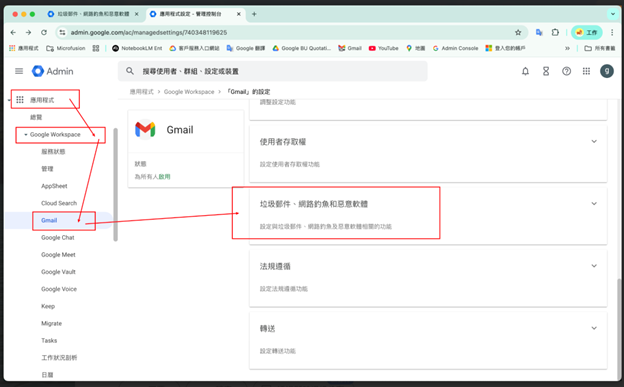
3. Configure “Blocked Senders”:
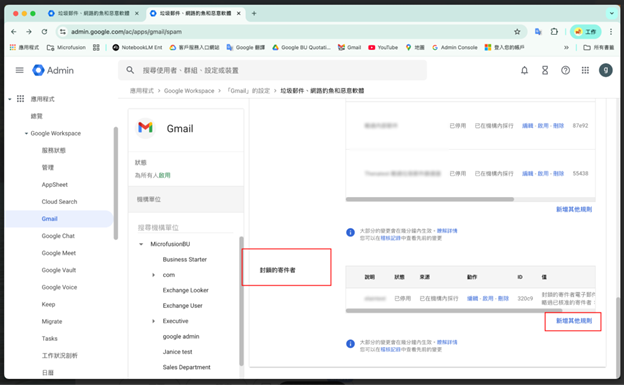
- Scroll down to the “Blocked senders” section.
- Select the organizational unit to which you want to apply the rule (we recommend selecting the top-level domain to protect all users across the company).
- Click the “Add another rule” button.
4. Add blocked addresses: On the rule settings page, add known malicious email addresses to the list.
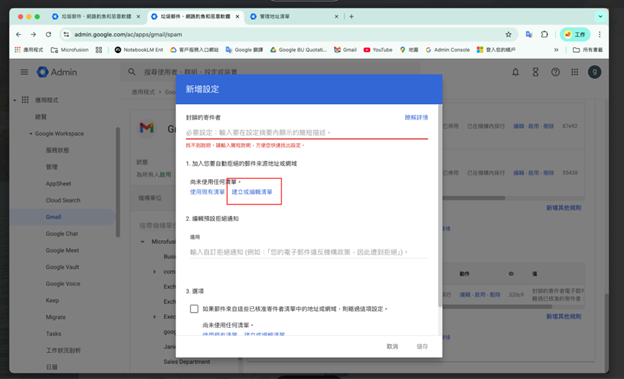
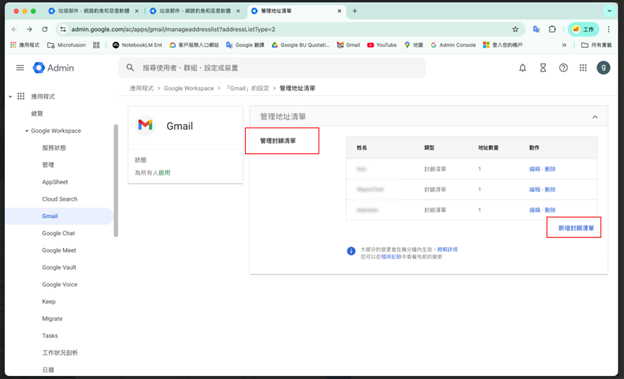
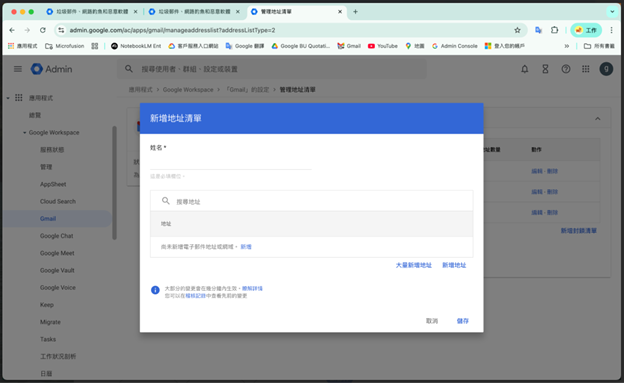
5. Return to the “Blocked senders” rule configuration page and add the list you just created.
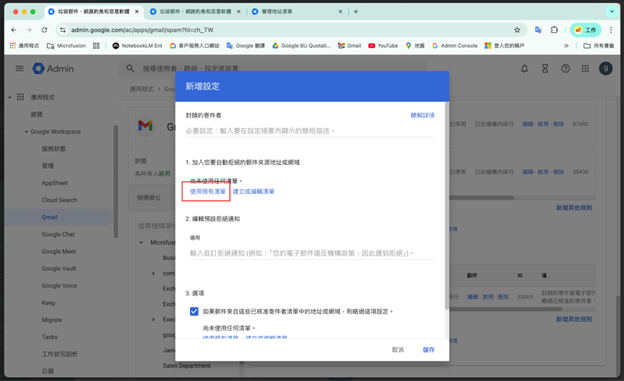
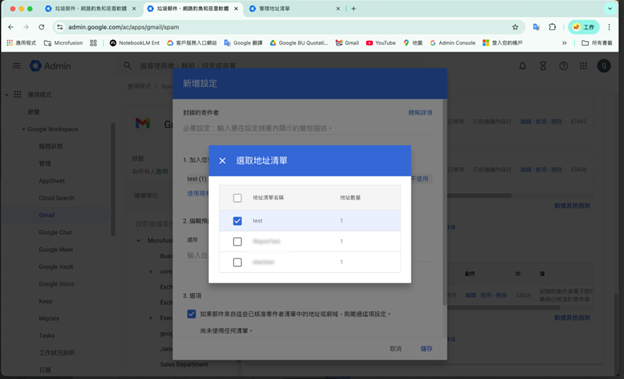
6. Save (Complete)
Quick reminder: This method works like a security team’s “blacklist”—any sender on the list is immediately blocked. But what if the attacker switches to a different email address? That’s when you’ll need our second method!
Method 2: Use “Content Compliance” Rules to Block by Keywords
🎯 Use Case: Ideal for phishing campaigns where sender addresses constantly change, but email subjects or content share common patterns (e.g., “Act Now,” “Account Locked,” “Urgent Notification”).
This approach targets recurring linguistic or structural traits in messages, effectively isolating entire phishing series.
Setup Instructions:
1. Go to Content Compliance Settings: In the Gmail settings page, click “Compliance.”
2. Add a Content Compliance Rule:
- Locate the “Content compliance” section.
- Click “Add a rule” and give it a clear, descriptive name (e.g., Quarantine Phishing – Keyword [Account Locked]).
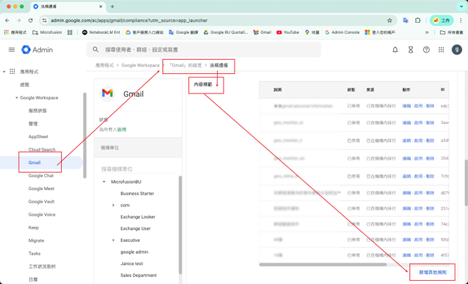
3. Configure Matching Conditions:
- Rule name: Assign an easily identifiable name (e.g., Quarantine Phishing – Content Keyword [Account Locked]).
- Email affected: Select “Inbound.”
- A. Choose expression type
- B. Add content compliance expression:
– Click “Add.”
– Type: Select “Advanced content match.”
– Location: Choose “Full subject” or “Full message” based on your needs.
– Match type: Select “Contains text.”
– Content: Enter the keyword or regular expression to trigger quarantine.
Example: If phishing emails consistently use the subject line “Act now to unlock your account,” enter that exact phrase.
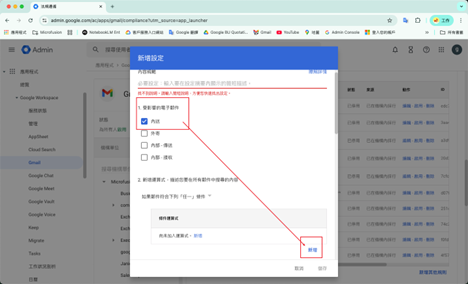
4. Select Enforcement Action:
- Scroll down to “When the expression in this setting matches, do the following.”
- Action: recommend selecting “Quarantine message.”
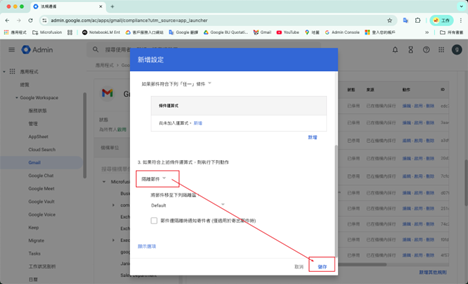
5. Save Changes (Complete Setup)
💡Advanced Tip: Enable OCR to Detect Malicious Text Hidden in Images
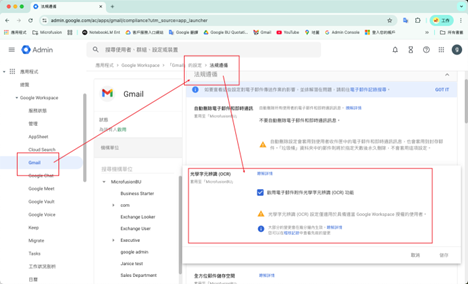
Today’s attackers are increasingly sophisticated—some embed phishing text directly into image files (e.g., PNG, JPG) to bypass traditional text-based detection. To counter this, you can enable Optical Character Recognition (OCR). OCR is a technology that extracts text from images and supports common formats including GIF, JPG, PNG, and TIFF. When enabled, Gmail automatically scans image attachments, converts embedded text into machine-readable form, and applies your existing content compliance or inappropriate content rules accordingly.
For example, if you’ve configured a rule to quarantine emails containing credit card numbers, and a customer sends you a PNG image of a monthly statement that includes such a number, enabling OCR allows Gmail to:
1. Extract the text from the image,
2. Detect the credit card number, and
3. Quarantine the email—just as it would for plain-text content.
With the rise of generative AI, phishing emails have become more convincing than ever—featuring fluent language and even mimicking the tone of executives or trusted partners. This emerging threat, known as “AI-enhanced attacks,” represents one of the most significant challenges facing enterprises today.
While the two methods outlined above address most conventional threats, cybersecurity remains a dynamic battlefield. We recommend adopting a defense-in-depth strategy:
1. Scope: Always verify that rules are applied to the correct Organization Unit. For comprehensive coverage, apply settings at the top-level domain unless specific exceptions are required.
2. Testing & False Positives: For keyword-based rules (Method 2), false positives are possible. We strongly advise using the “Quarantine message” action initially—rather than outright rejection—to allow manual review and refinement of keywords.
As a Google Cloud Premier Partner, Microfusion provides expert cloud implementation services, helping organizations transform complex technologies into strategic business advantages—so you can focus on your core operations with confidence.
Ready to strengthen your enterprise cloud security? Don’t let phishing emails become your organization’s weakest link. Contact us today—our specialists will deliver a tailored cloud security solution designed for your unique needs.