



“Everything was working fine—why can’t our ERP system send payroll emails all of a sudden?”
This has become a common headache for IT and finance teams recently. With Google’s announcement that it will discontinue support for “less secure apps” in 2025, the old method of simply entering a username and password in your system to send emails is no longer viable. We’ve entered a new era of cloud security—one centered on strong authentication and the principle of least privilege. For enterprises, adopting SMTP Relay isn’t just about fixing email delivery—it’s a critical step to protect your domain from abuse and improve email deliverability.
In this guide, we’ll walk you through, step by step, how to properly configure Gmail SMTP Relay and set up App Passwords for secure, reliable email sending from your ERP or other business systems.
What Is SMTP Relay? Let Google Become Your Enterprise Email’s “Powerful Relay Hub”
In simple terms, SMTP Relay (Simple Mail Transfer Protocol Relay) acts like a professional mail forwarding center. When your internal business systems—such as ERP, CRM, or even scanners—need to send emails externally, they first hand the message over to Google’s servers, which then handle the final delivery on your behalf.
Why Use SMTP Relay?
- High Deliverability & Stability: Leverage Google’s robust and trusted email infrastructure to significantly reduce the risk of your messages being flagged as spam or blocked by recipients.
- Enhanced Security & Compliance: Eliminate the need to store your primary account password in applications. Instead, use secure, limited-scope credentials—dramatically lowering the risk of credential exposure and aligning with modern security best practices.
Three-Step Setup: From Admin Console to App Password
To ensure a successful configuration, follow these three stages in order.
Step 1: Configure Google SMTP Relay Service
This step tells Google: “I authorize my internal systems to send emails through Google’s servers.”
1. Go to Admin Console > Apps > Google Workspace > Gmail > Routing (or Relay depending on interface).
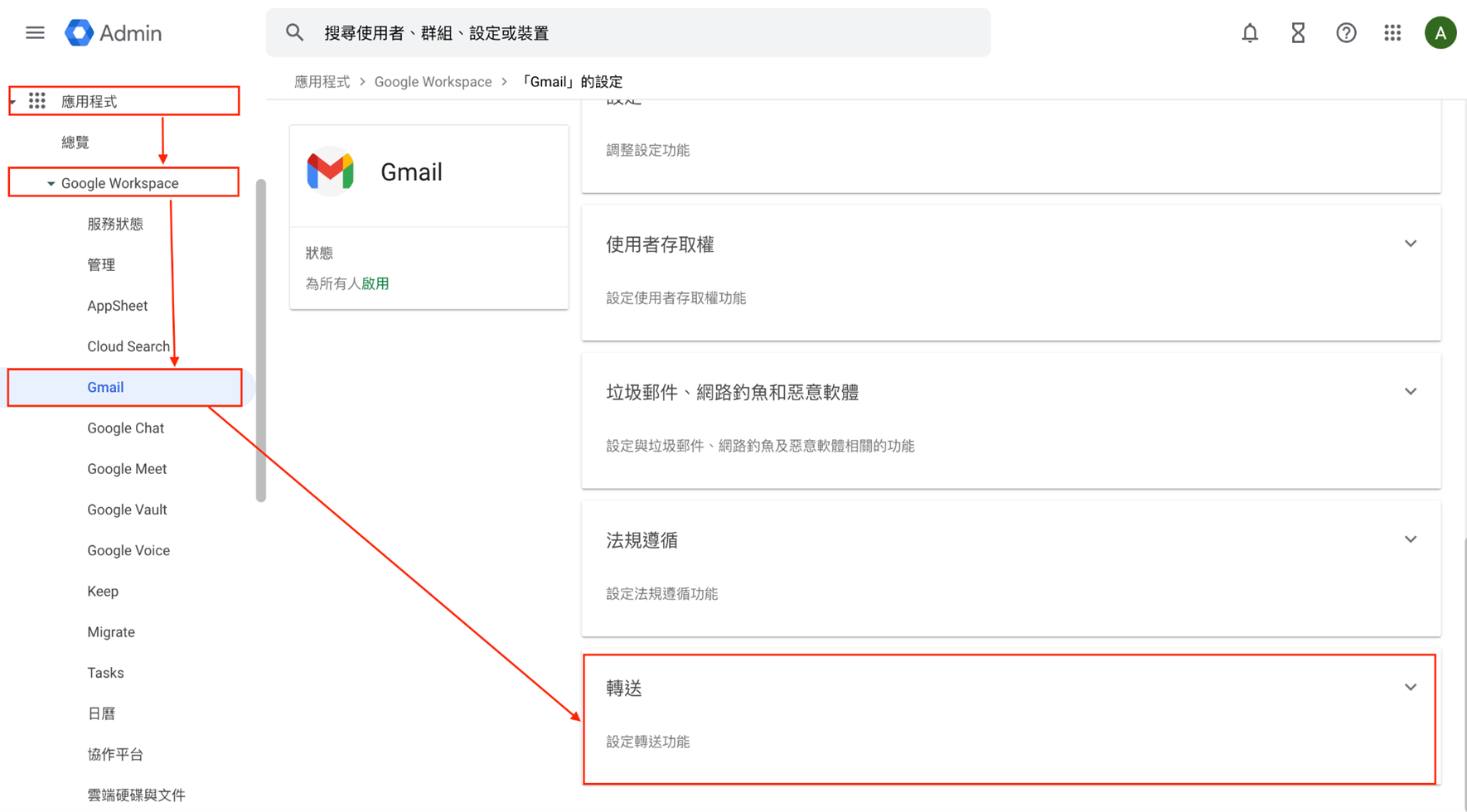
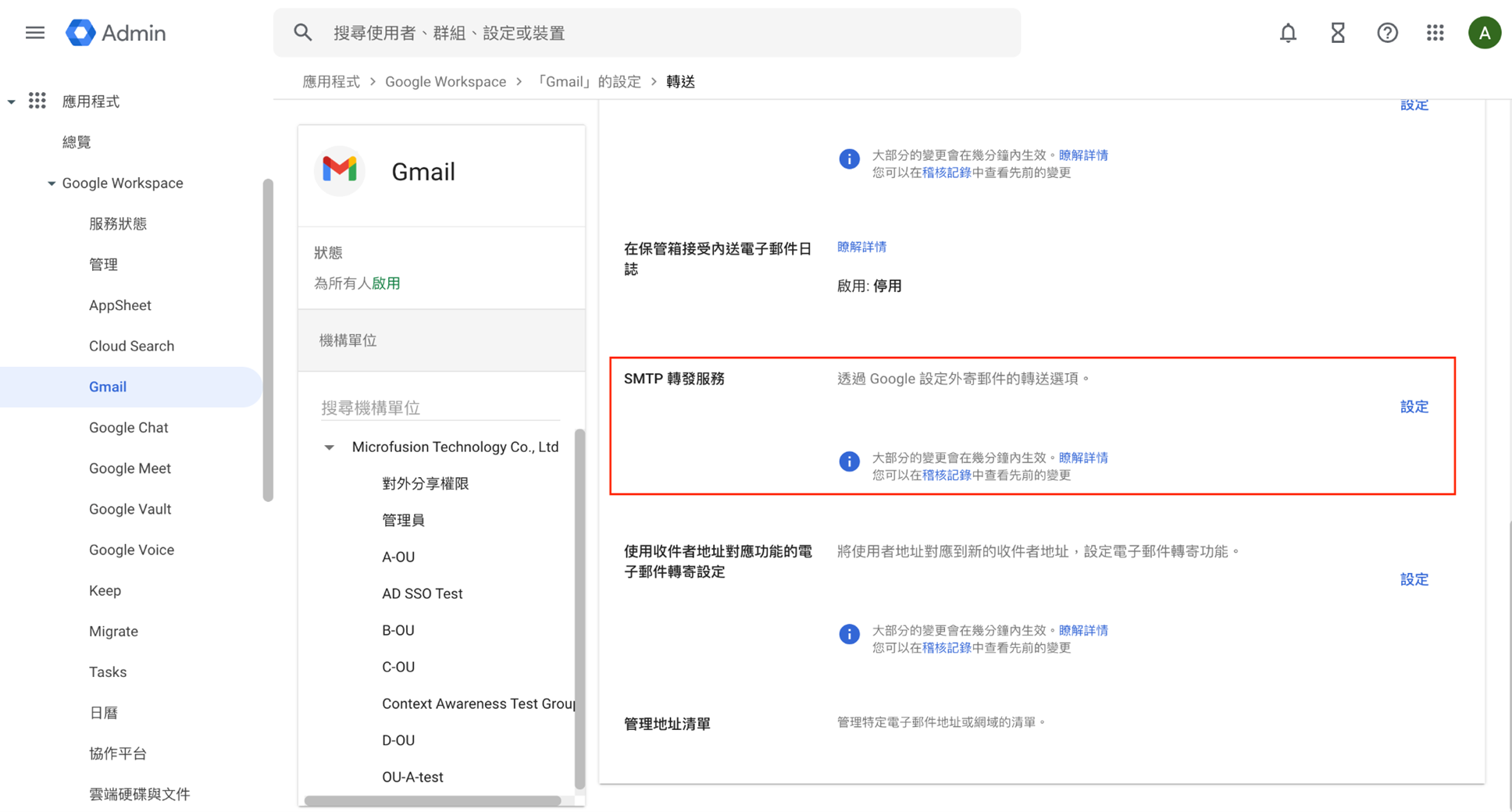
2. Scroll down to SMTP Relay Service and click Configure (or Add Another Rule if already set up).
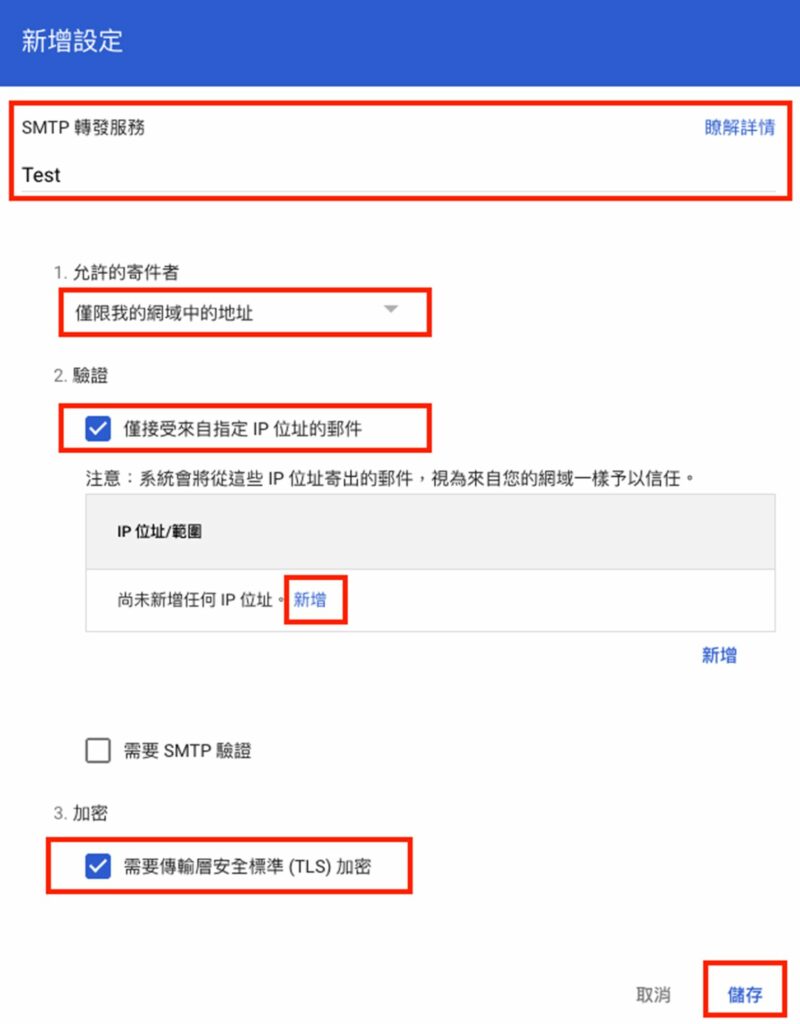
3. Fill in the New Setting:
- Relay Service Name: Enter a descriptive name for this rule (e.g., “ERP Payroll Relay”).
- Allowed Senders: Select “Only registered users in your domain”.
- Authentication: Choose “Only accept mail from specified IP addresses”, then add the public IP address(es) of your internal ERP or application server(s). (Google will only accept relay requests from these IPs.)
- Encryption: Select TLS encryption only if your internal system supports it. If not, do not enforce TLS, or email delivery will fail.
- Click Save.
Step 2: Prepare the Sending Account and “App Password”
Since Google Workspace no longer supports less secure apps as of March 1, 2025, internal systems can no longer use regular account passwords. Set up a dedicated Gmail account specifically for sending emails from your systems. After logging into this Gmail account, complete the following two settings:
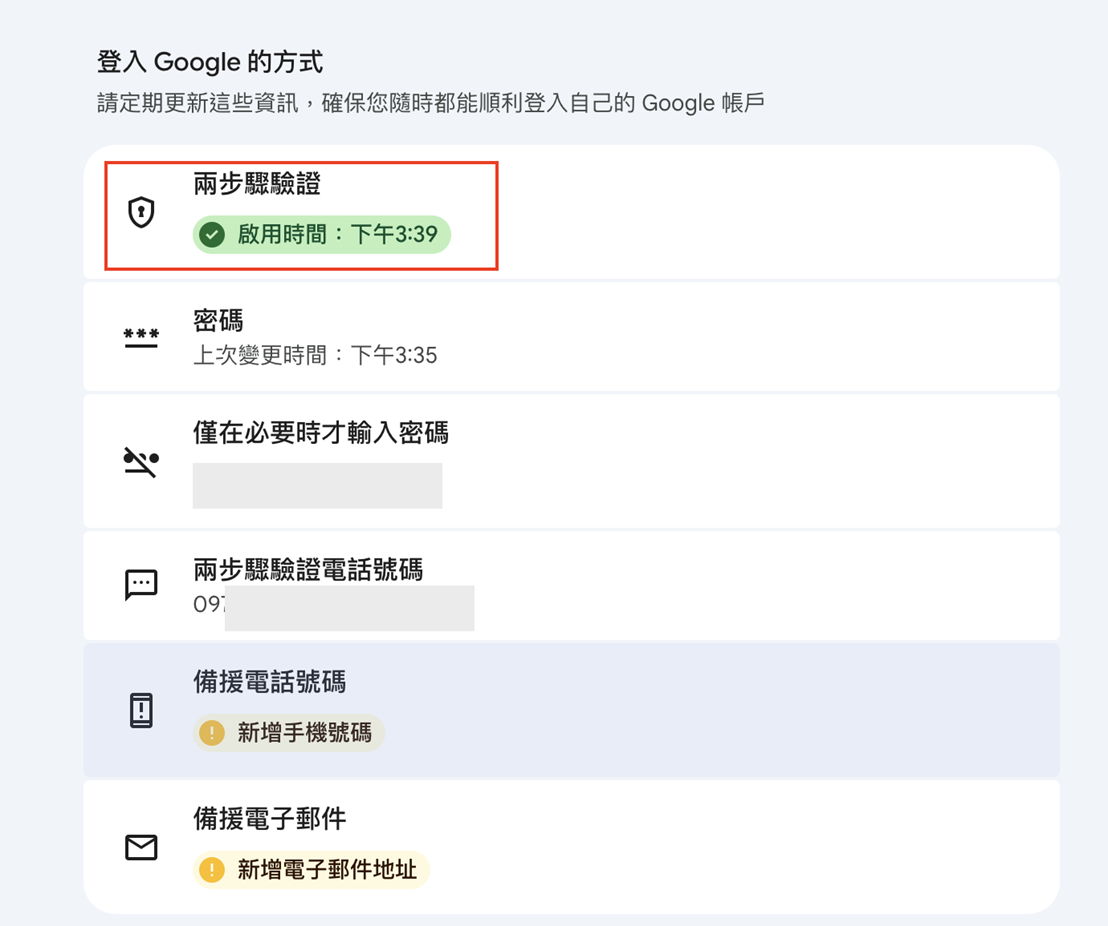
1. Enable Two-Factor Authentication (2FA)
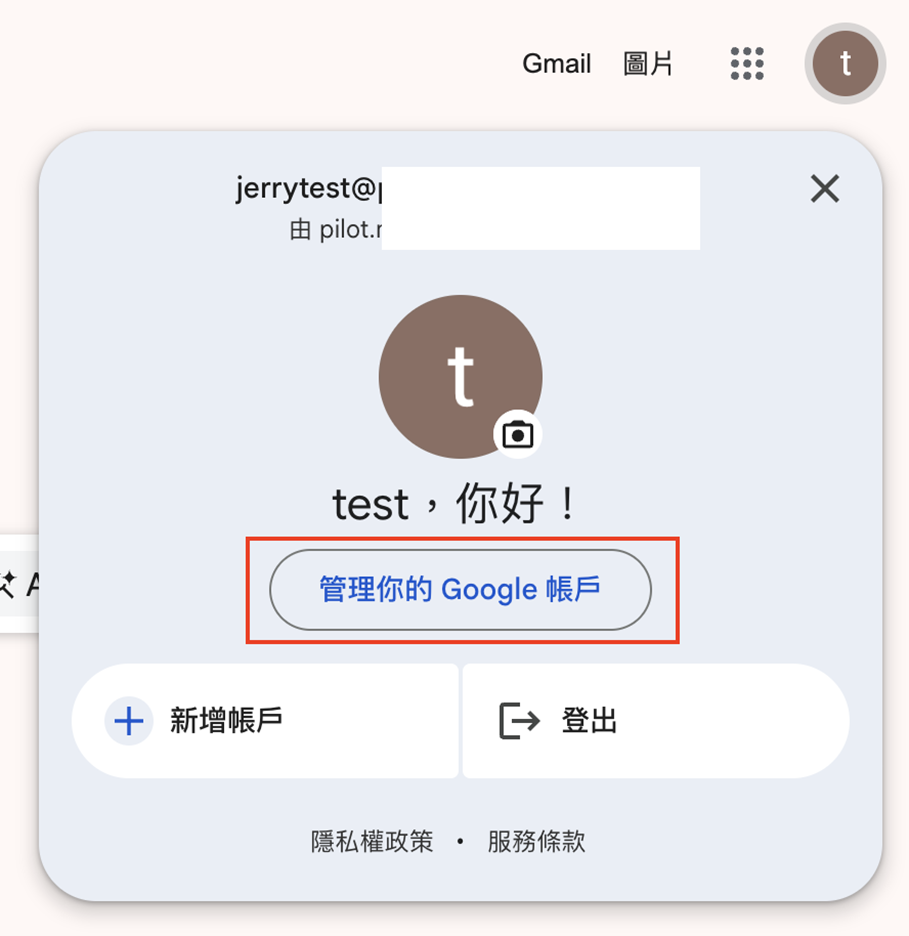
- After logging into your Gmail account, click your profile picture in the top-right corner, then select “Manage your Google Account” at the bottom.
 In the left sidebar, go to “Security and signing in” and confirm that “2-Step Verification” is enabled.
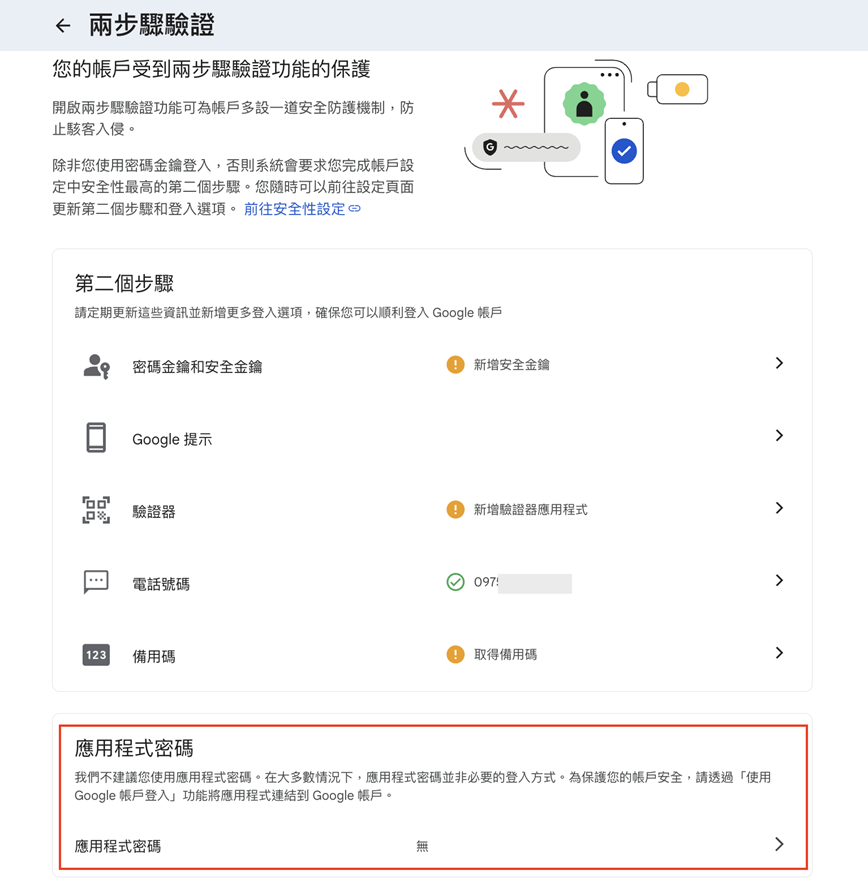
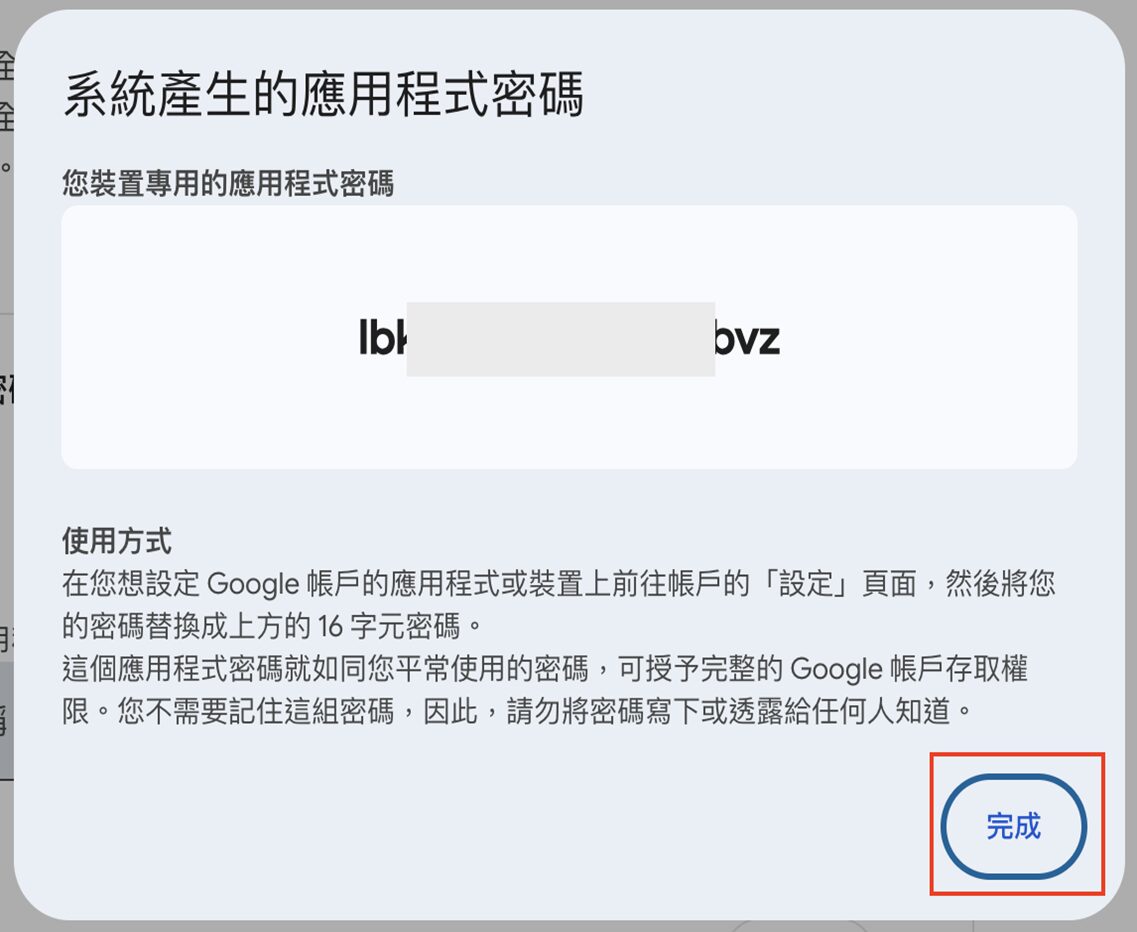
2. Generate an App Password
- Within the 2-Step Verification settings, select “App passwords” (which appears below after 2FA is enabled).
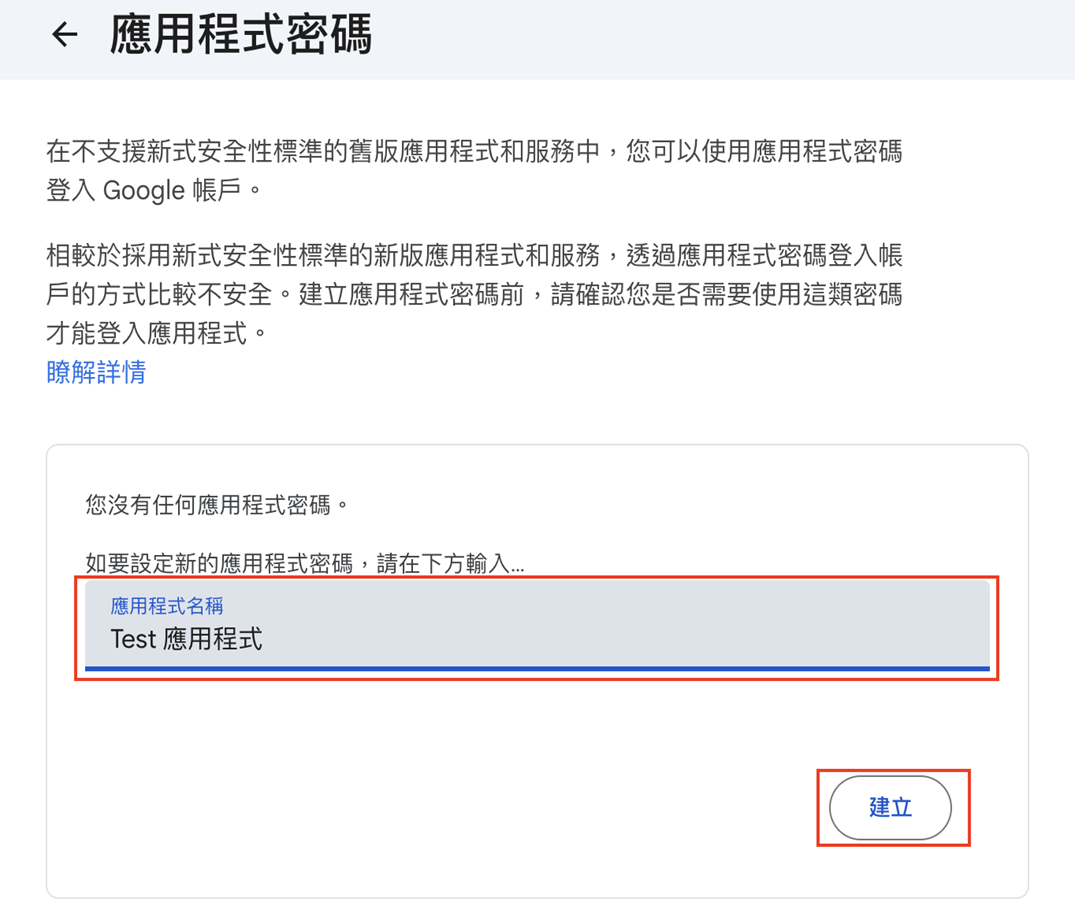
 Enter a name for the app (e.g., “Internal System SMTP”) and click Create.
 Copy and securely save the generated app password. Important: This password will only be shown once—after closing this screen, you won’t be able to view it again and will need to delete and regenerate it if lost.
Step 3: Complete Email Configuration in Your Internal System
Configure your internal enterprise system to use Google Workspace by pointing it to the SMTP relay service. In your organization’s internal system settings, connect to the SMTP service using one of the following ports: smtp-relay.gmail.com on port 25, 465, or 587.
|
Setting Item
|
Recommended Value
|
Notes
|
|---|---|---|
|
SMTP Server
|
smtp-relay.gmail.com | – |
|
Port
|
587
|
Depends on TLS encryption:
• With TLS enabled: use port 587. • Without TLS: use port 25, 465, or 587. |
|
SMTP Username
|
Gmail address used to generate the app password
|
–
|
|
SMTP Password
|
App Password (16-character code)
|
–
|
Cloud Security Trends You Should Focus On—Beyond Just Configuration
Many business owners ask: “Why is Google making things more complicated?” In fact, this reflects the growing trend toward a Zero Trust security architecture. Traditional “username + password” authentication is highly vulnerable in the face of automated attacks. By implementing SMTP Relay combined with two-factor authentication and app passwords, businesses can precisely control: Who is allowed to send emails? From which locations can emails be sent? And to whom are they being sent?
Microfusion recommends that enterprises take this opportunity to comprehensively review all internal email-sending endpoints. If your organization sends a large volume of emails or exchanges highly sensitive information, you should go beyond basic Relay configuration and further implement email authentication protocols such as SPF, DKIM, and DMARC to fully prevent domain spoofing risks.
Encountering obstacles during setup? Or concerned that changes to Google Workspace policies might impact your business operations?
Microfusion has a team of professional technical consultants who can provide comprehensive solutions—from email migration and security hardening to automation workflow integration. We’re committed to simplifying complex technologies so you can focus on growing your core business.
Ready to upgrade your enterprise email security? Contact Microfusion’s expert team now for professional consultation.