



In supporting enterprise digital transformation, Microfusion often observes a common—and risky—practice: despite adopting advanced cloud services, many organizations still manage shared mailboxes (e.g., contact@company.com or executive email accounts) by simply sharing account passwords.
Password sharing not only causes login issues—especially when two-factor authentication (2FA) is enabled—but also makes security auditing impossible, as it becomes unclear which user sent a given email.
As your trusted cloud partner, we’re highlighting Gmail’s built-in Delegation feature: a secure collaboration solution that allows you to grant colleagues permission to read, send, and delete emails—without ever sharing the password—striking the perfect balance between efficiency and security.
Why Should Modern Enterprises Fully Adopt Gmail Delegation?
Identity is the first line of defense in cybersecurity. When multiple users share a single password, that defense collapses.
As cloud strategies increasingly align with Zero Trust architecture, organizations must ensure every action is traceable. Gmail’s Delegation feature enables authorized users to access a shared mailbox using their own Google account, switching identities to handle official correspondence. This means system logs clearly show: “This email was sent by User A on behalf of User B.” This not only clarifies accountability but also streamlines permission management—when an employee leaves or changes roles, administrators simply revoke delegation rights in the backend, eliminating the need to reset shared passwords in panic.
Step-by-Step Guide: Set Up Gmail Delegation
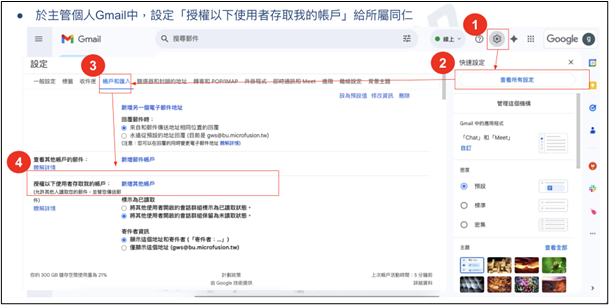
- Open Gmail on a computer.
Note: You cannot add delegates via the Gmail mobile app. - Click the Settings icon in the top-right corner → “See all settings.”
- Go to the “Accounts and Import” or “Accounts” tab.
- Under “Grant access to your account,” click “Add another account.”
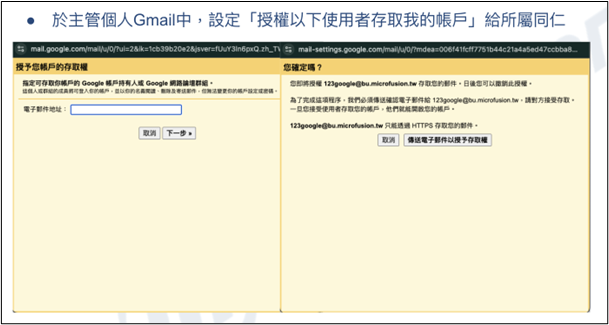
Note: If you’re using a company or school Gmail account, your organization may restrict delegation. If this option isn’t visible, contact your administrator. - Enter the delegate’s email address.
Tip: For organizational accounts, you may enter a group email address—provided it belongs to the same domain and delegation is enabled by your admin. External group members cannot be granted delegation rights.
Important: If the delegated account is new or its password has recently been reset, your admin must disable the “force password change on first login” policy.
– [Learn how admins add users]
– [Learn how admins reset passwords] - Click “Next” → “Send email to grant access.”
Post-Setup Notes:
- The delegate will receive a confirmation email. The invitation expires after 7 days.
- If you delegate to a group, all members automatically become delegates—no individual confirmation needed.
- Delegation may take up to 24 hours to take effect.
Accessing a Delegated Account
Once the account owner has granted you access, follow these steps to use the delegated mailbox:
Step 1: Accept the Invitation
Important: The invitation must be accepted within 7 days, or it will expire.
- Open Gmail on a computer.
- Check your inbox for an email with the subject: “<Owner’s Name> has granted you access to their Gmail account.”
- Open the email and click the confirmation link.
Step 2: Open the Delegated Inbox
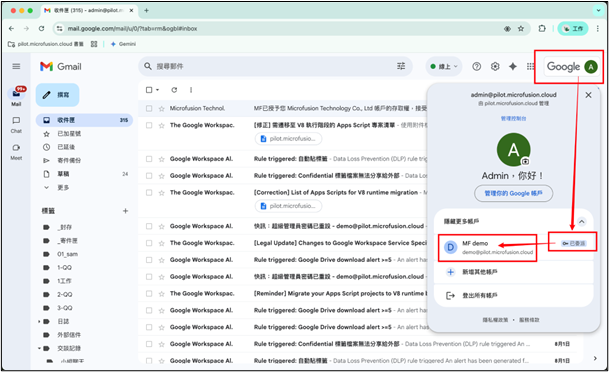
- Sign in to your own Gmail account on a computer.
- Click your profile picture in the top-right corner.
- In the dropdown menu, locate the account labeled under “Delegated.”
- Click the name of the delegated account.
– A new tab will open, displaying the owner’s inbox. - To confirm you’re in the correct account, check the email address shown at the top of the screen.
Step 3: Switch Back to Your Account
Close the browser tab containing the delegated account.
Alternatively, you can:
- Click your profile picture in the top-right corner.
- Select your own email address from the menu.
Tips:
- Do not bookmark the delegated inbox directly—access URLs may change.
- Always use Gmail’s built-in account switcher to ensure you’re accessing the correct account.
A seemingly simple Gmail setting like delegation actually reflects an organization’s maturity in cloud deployment and security governance.
In our experience at Microfusion, many enterprises focus initially on whether a feature “exists,” often overlooking configuration best practices. Delegation is a prime example of a native capability that elegantly resolves the tension between collaboration efficiency and security control.
Looking ahead, cloud trends will increasingly emphasize automation and granular permission management. Whether you’re optimizing costs with FinOps or integrating generative AI into workflows, robust identity and access management remains the foundation. Establishing the right habits today ensures your business can fully leverage cloud services—securely and confidently.
Have questions about optimizing your Google Workspace setup or strengthening your cloud security architecture? Contact us anytime—our certified solutions architects are ready to help you build a secure, efficient, and future-ready cloud workspace.